n8n Contact Form Filter: Google Sheets + Gmail Auto Reply
n8n Contact Form Filter: Google Sheets + Gmail Auto Reply
Regular price
£40.99
Regular price
£40.99
Sale price
Unit price
per
⬇
Instant Digital Download
∞
Unlimited Downloads
★
Lifetime Access in Your Account
Couldn't load pickup availability
🔥
128+ Sold
Popular with n8n builders
⚡
23 people viewing
High interest right now
✅
9 added today
Fast-moving digital product

n8n Contact Form Filter: Google Sheets + Gmail Auto Reply
Regular price
£40.99
Regular price
£40.99
Sale price
Unit price
per
Auto-reply to real website leads—filter spam first with n8n, Google Sheets, and Gmail
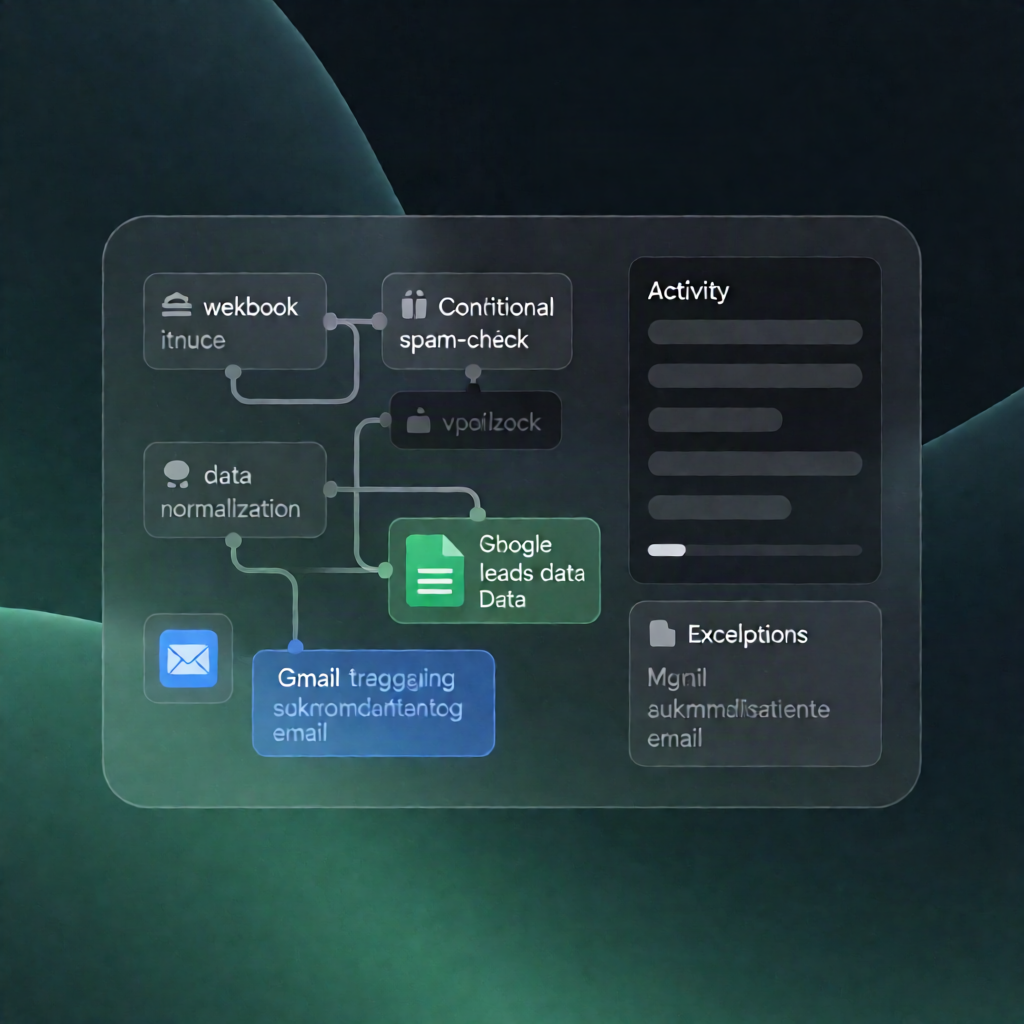
This n8n workflow receives your website contact form submissions via webhook, filters likely junk, saves valid enquiries to Google Sheets, and sends an acknowledgement email through Gmail—while logging rejected messages (and reasons) to an Exceptions tab.
What this workflow does
- Receives POST submissions from your website form using an n8n Webhook.
- Normalizes the payload into consistent fields: name, email, company, phone, message, page, honeypot, and timestamps.
-
Validates and flags likely spam using rules such as:
- email format checks
- honeypot detection
- disposable domain indicators
- short-message filtering
- excessive links detection
- cold-pitch/copy patterns
-
Routes results:
- Valid enquiries go to the “real” path.
- Suspicious submissions go to an “exceptions” path with a rejection reason.
- Enriches valid leads with context like email domain, whether it’s likely personal, an enquiry ID, and a status.
-
Appends to Google Sheets:
- Leads tab for accepted enquiries
- Exceptions tab for rejected submissions and why
- Sends a Gmail acknowledgement email back to the submitter.
Use cases
- SaaS teams capturing inbound “contact us” enquiries without manual spam cleanup.
- Landing pages that need reliable lead logging to Google Sheets plus instant Gmail replies.
- Automation engineers wanting a practical n8n spam-filtering pattern (honeypot + content rules) with auditability via Exceptions.
Technical details
- n8n nodes: Webhook, If, Set, Code, Gmail, and sticky note.
- Google Sheets: use a spreadsheet with two tabs named Leads and Exceptions.
- Setup highlights: create Google Sheets + Gmail credentials in n8n, paste the spreadsheet URL into the Google Sheets nodes’ Document ID fields, and configure your website form to POST to the workflow’s production webhook URL.