WhatsApp to Google Calendar Booking with Twilio (n8n Workflow)
WhatsApp to Google Calendar Booking with Twilio (n8n Workflow)
Regular price
£26.99
Regular price
£26.99
Sale price
Unit price
per
⬇
Instant Digital Download
∞
Unlimited Downloads
★
Lifetime Access in Your Account
Couldn't load pickup availability
🔥
128+ Sold
Popular with n8n builders
⚡
23 people viewing
High interest right now
✅
9 added today
Fast-moving digital product

WhatsApp to Google Calendar Booking with Twilio (n8n Workflow)
Regular price
£26.99
Regular price
£26.99
Sale price
Unit price
per
Book appointments from WhatsApp automatically—by creating tomorrow’s Google Calendar event and confirming via Twilio
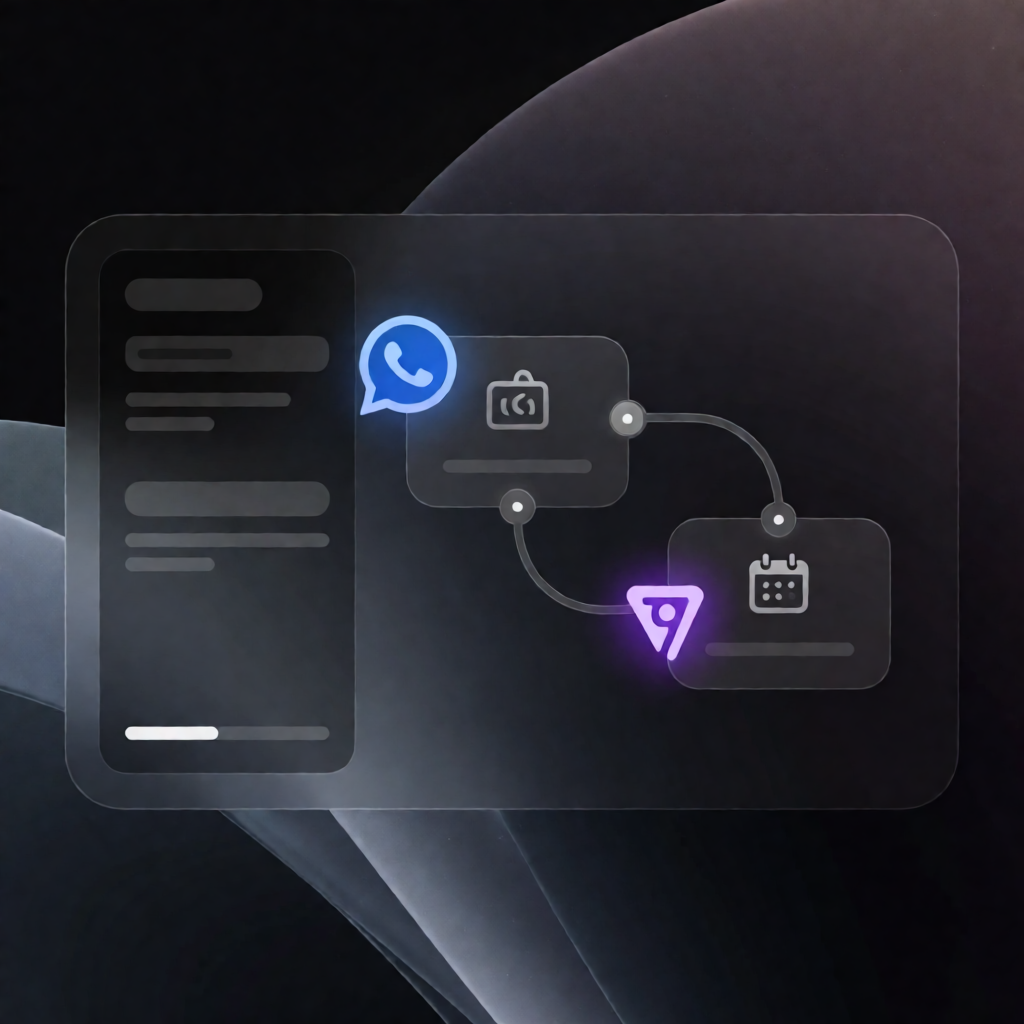
This n8n workflow listens for incoming WhatsApp messages, and when someone texts “book”, it automatically schedules a next-day appointment in Google Calendar and replies back with a confirmation message through Twilio.
What this workflow does
- Receives WhatsApp messages via a POST webhook endpoint in n8n.
- Scans the message body and checks whether it includes the word “book”.
- Creates a Google Calendar event for tomorrow, scheduled from 10:00 to 11:00. The sender’s WhatsApp number is included in the event description.
- Sends a WhatsApp confirmation to the same sender using Twilio.
Use cases
- Let customers book a time slot by simply texting “book” to a WhatsApp business number.
- Enable a lightweight appointment intake process for SaaS operators or small teams without building a full booking app.
- Automate scheduling for consultation calls, support sessions, or demos where a fixed “tomorrow 10:00–11:00” slot is acceptable.
Technical details
- if: checks whether the incoming WhatsApp message contains the word “book”.
- webhook: receives inbound WhatsApp messages via a POST endpoint URL.
- google calendar: creates the appointment event (tomorrow, 10:00–11:00) in your specified calendar ID.
- twilio: sends the WhatsApp confirmation reply back to the sender.
Setup
- Connect your Twilio credentials and set up a Twilio WhatsApp sender number (or sandbox).
- Connect your Google Calendar OAuth2 credentials and update the calendar ID.
- Copy the workflow’s webhook URL and configure Twilio’s incoming WhatsApp webhook to POST messages to it.